
The first time anyone tries to wire ServiceControl to Keycloak, everything looks like it works right up until ServicePulse calls the API and gets a 401. The browser has a token. The token is valid. The signature checks out. The issuer matches. And the API rejects it anyway, with a log line that says the audience doesn’t match. The reason is almost always the same: Keycloak issued a token without an aud claim that ServiceControl recognises, because by default Keycloak doesn’t add one. This post walks through the Keycloak configuration in the order that makes that problem go away, with the audience mapper getting the attention it deserves.
Part 1 of the series handled the architecture and the RabbitMQ prep. From here on, we assume the reverse proxy is in place and DNS for kc.<yourdomain> resolves to the host.
Bring Keycloak up on its own
ServiceControl can’t start until it can fetch the OIDC discovery document from Keycloak, so the order matters: Keycloak first, alone, then the rest. The service block in docker-compose.yml is small. The environment variables are the interesting part:
# Public URL the browser sees. Keycloak uses this to build every
# absolute URL it returns (issuer, redirect_uri, token endpoint).
KC_HOSTNAME: ${KEYCLOAK_PUBLIC_URL}
KC_HOSTNAME_STRICT_HTTPS: "true"
# The reverse proxy terminates TLS and forwards plain HTTP; this
# tells Keycloak to trust the X-Forwarded-* headers it sees.
KC_PROXY_HEADERS: xforwarded
KC_HTTP_ENABLED: "true"
KEYCLOAK_ADMIN: ${KEYCLOAK_ADMIN_USER}
KEYCLOAK_ADMIN_PASSWORD: ${KEYCLOAK_ADMIN_PASSWORD}
KC_HOSTNAME is the public URL Keycloak hands out in every absolute link it builds. Without it, Keycloak introspects the request and assumes the URL the browser used was the one the container saw, which on the inside is http://auth-keycloak:8080. Every redirect would then send the browser to that hostname, and the browser couldn’t resolve it. KC_HOSTNAME_STRICT_HTTPS keeps Keycloak honest if anything starts handing it http:// URLs; the reverse proxy in front speaks HTTPS to the browser, so this is what we want.
KC_PROXY_HEADERS: xforwarded tells Keycloak to trust the X-Forwarded-Proto and X-Forwarded-Host headers the reverse proxy adds. KC_HTTP_ENABLED: "true" keeps Keycloak itself on plain HTTP behind the proxy, since TLS terminates one hop up. Without these three, Keycloak’s first redirect after the login form takes the user to https://localhost:8080/... and the flow dies.
start-dev runs Keycloak in development mode against an embedded H2 database. That’s fine for a POC. Part 4 of this series lists what changes for production.
Bring it up by itself:
docker compose up -d auth-keycloak
docker logs -f auth-keycloak
When the logs settle on Running the server in development mode, open https://kc.<yourdomain>/admin in a browser and log in with the admin credentials from .env.
Create the realm
Keycloak ships with a master realm for managing Keycloak itself. Don’t put application configuration in it. Create a separate realm for this work:
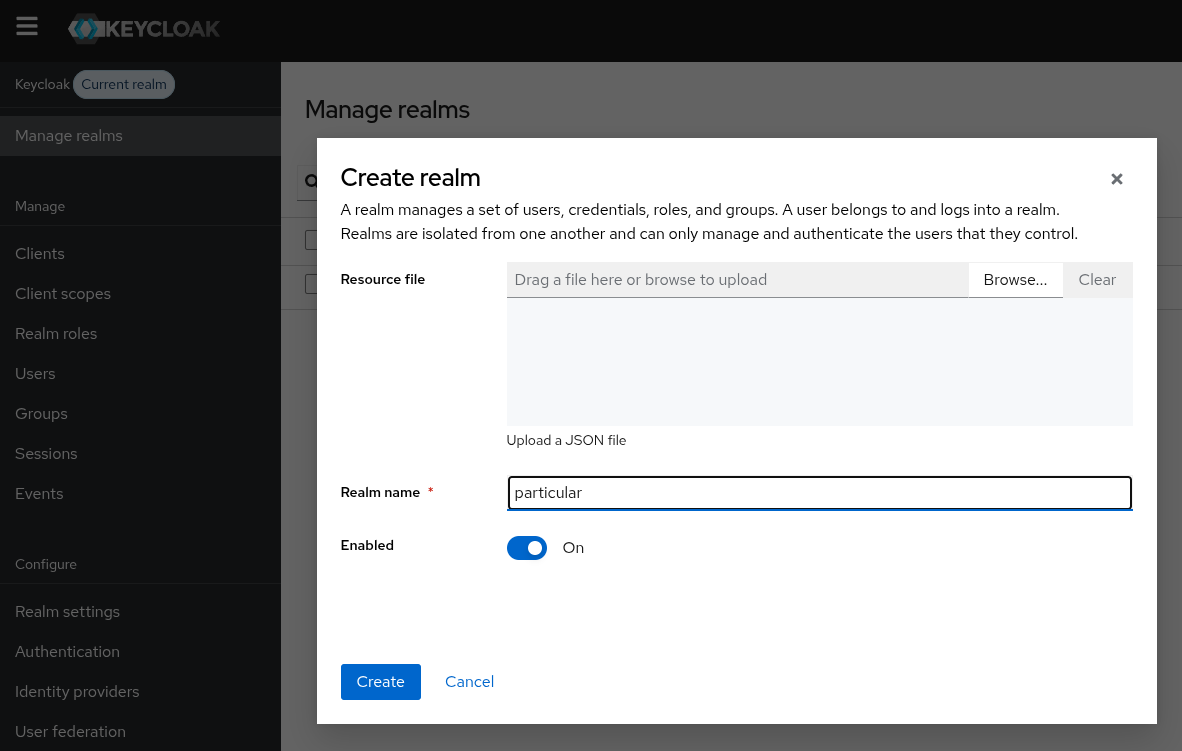
The realm name is particular. Everything else stays default. The realm’s discovery document, once it exists, is reachable at https://kc.<yourdomain>/realms/particular/.well-known/openid-configuration. Visit it now to confirm the public URL is what Keycloak thinks it is. The issuer field in the JSON should read https://kc.<yourdomain>/realms/particular, not http://localhost:8080/realms/particular. If it shows localhost, KC_HOSTNAME didn’t take, and nothing downstream will work.
The client scope ServicePulse will request
ServicePulse asks Keycloak for a small list of scopes when it sends the user to log in: openid, profile, email, and servicecontrol-api. The first three are standard OIDC scopes Keycloak knows about out of the box. The fourth is ours to define, and it carries the audience configuration that makes ServiceControl trust the resulting token.
In the realm, navigate to Client scopes and create one called servicecontrol-api:
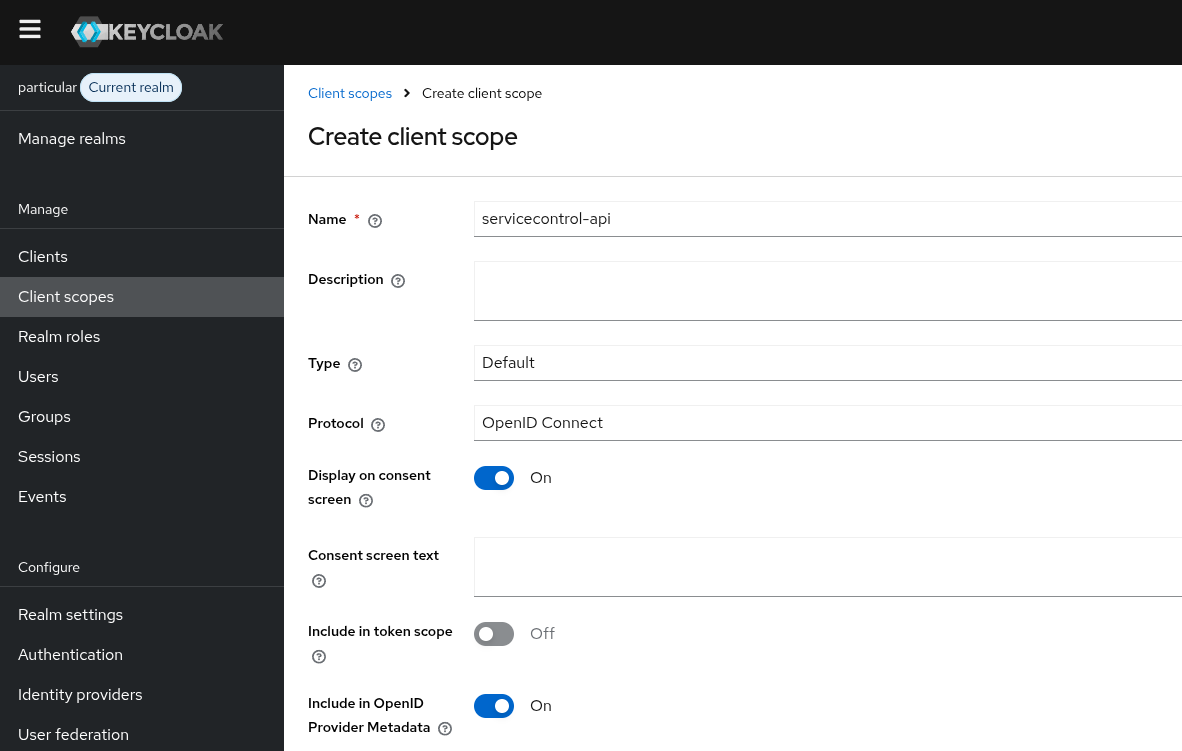
The Type field is the part that matters. Default means clients that have this scope assigned receive it automatically on every request: the user doesn’t have to consent each time, and the SPA doesn’t have to ask for it explicitly. Optional would require the client to include the scope name in the authorization request, which works, but it’s an extra place to forget a setting. Default keeps the configuration in one place: on the client.
Protocol stays openid-connect. Everything else is fine on defaults.
The audience mapper
Here’s the failure that catches every first-time setup. A token issued by Keycloak by default looks something like this:
{
  "iss": "https://kc.<yourdomain>/realms/particular",
  "sub": "f:abcd1234:test-user",
  "azp": "servicepulse",
  "scope": "openid profile email servicecontrol-api",
  "exp": 1735689600
}
There is no aud claim. Or rather, the aud claim is set to the client that asked for the token, which is servicepulse. ServiceControl is configured to require aud to equal servicecontrol-api. They don’t match, and the API returns 401 invalid audience.
The fix is to attach a mapper to the servicecontrol-api client scope. A mapper is a Keycloak primitive that transforms the contents of a token at issue time. The Audience mapper, specifically, writes one or more values into the token’s aud claim. Every client that requests the servicecontrol-api scope will then get a token whose audience is exactly what ServiceControl expects.
Inside the servicecontrol-api scope, switch to the Mappers tab and add a new one, By configured type → Audience:
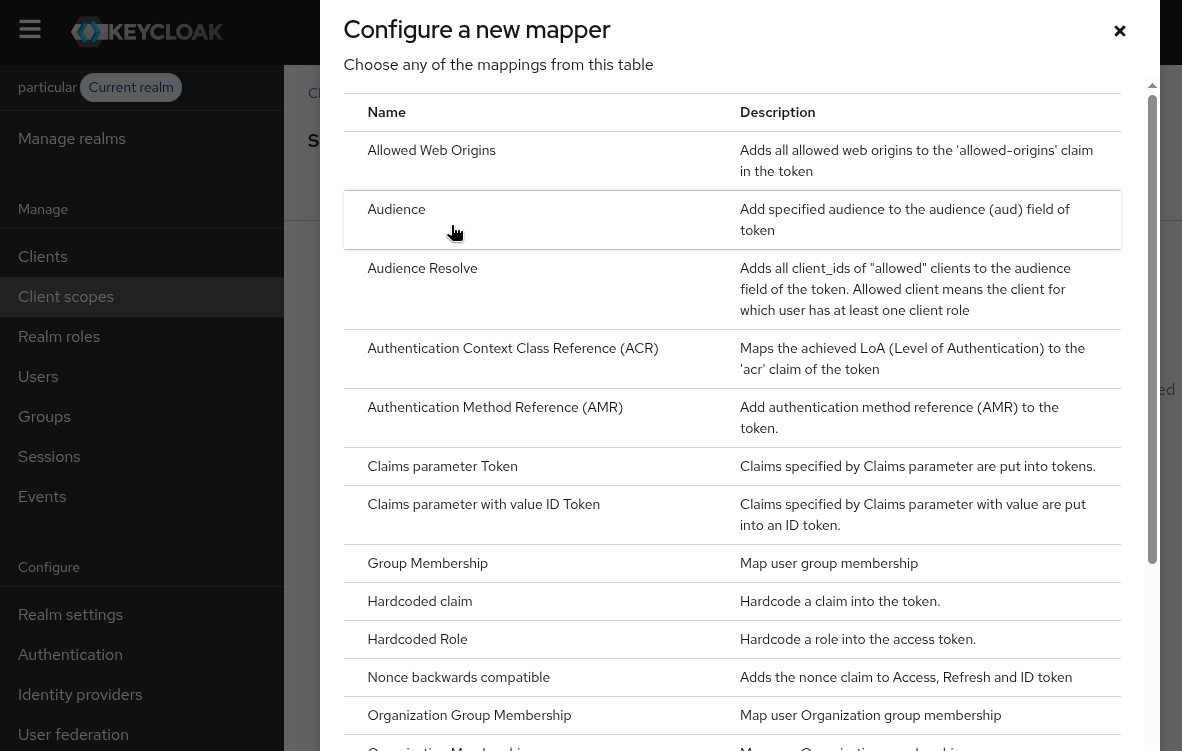
The mapper name can be anything; servicecontrol-api-audience is descriptive. The Included Custom Audience field is the value that lands in the token’s aud claim, and it has to match what ServiceControl is configured to expect down to the character. Use servicecontrol-api. Leave Included Client Audience blank; that field adds an existing client as an audience, which is a different use case.
The crucial toggle is Add to access token. It’s on by default in newer Keycloak versions, but it’s worth confirming. If it’s off, the mapper still configures the ID token, the API never sees that, and you’re back to the same 401.
Once the mapper is saved, the configuration on the Keycloak side is half done. We’ve defined a scope that, when requested, results in tokens with the right audience. Now we need a client that requests it.
Configure a client
Now we register a Keycloak client for ServicePulse, the entry in Keycloak that represents the SPA and tells Keycloak what it’s allowed to do. ServicePulse is a single-page app served by ServiceControl. It runs in the browser, which means it can’t keep a client secret, which means in OAuth terms it’s a public client. The right flow for a public client is Authorization Code with PKCE. Walk that through Keycloak’s create-client wizard:
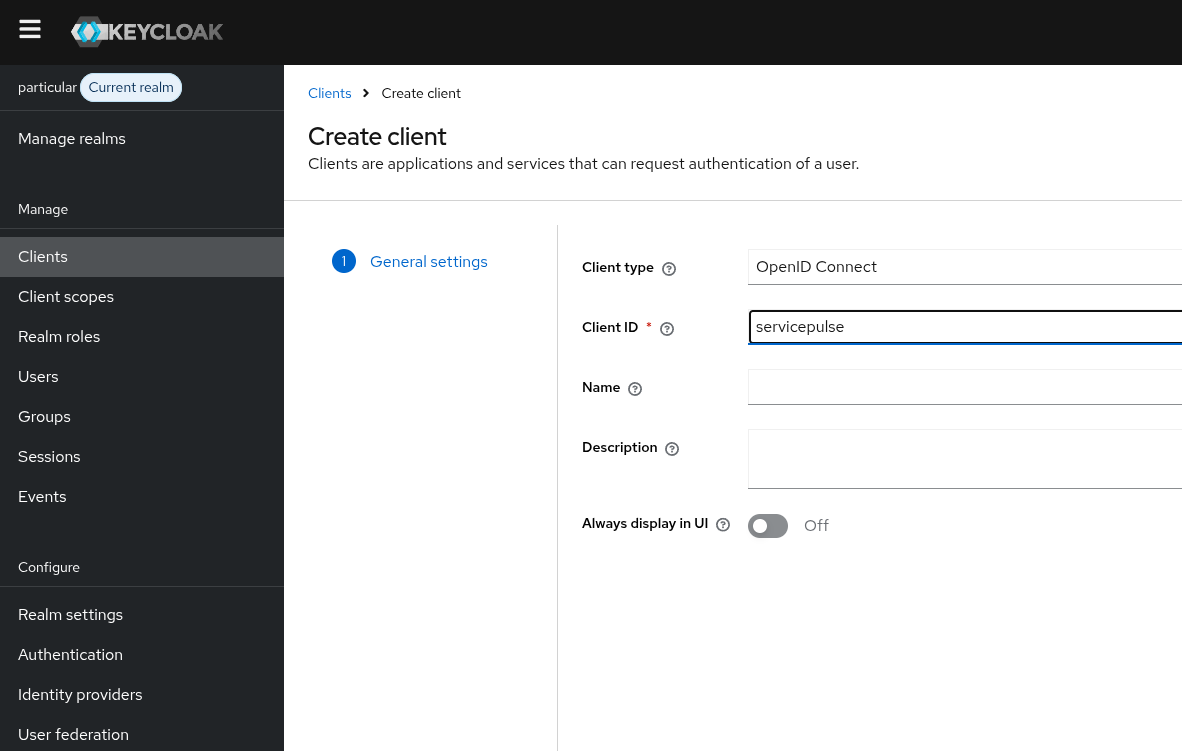
Step 1, General settings, sets Client type to OpenID Connect and Client ID to servicepulse. That ID has to match whatever ServiceControl hands to the browser in SERVICECONTROL_AUTHENTICATION_SERVICEPULSE_CLIENTID, Part 3 has the env var; the value is servicepulse.
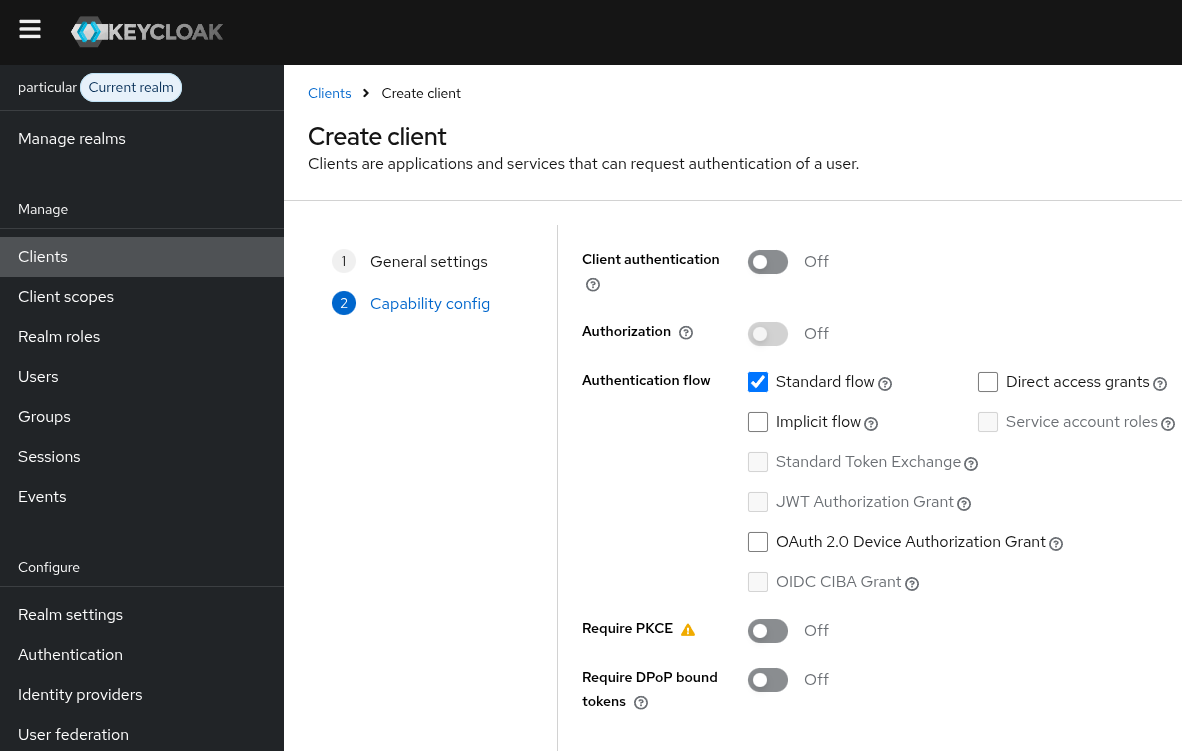
Step 2, Capability config, is where public-vs-confidential is decided. Client authentication off makes this a public client. Standard flow on enables the authorization code flow, which is what ServicePulse uses. Direct access grants (the resource-owner password flow) is a legacy flow that shouldn’t be involved here; turn it off.
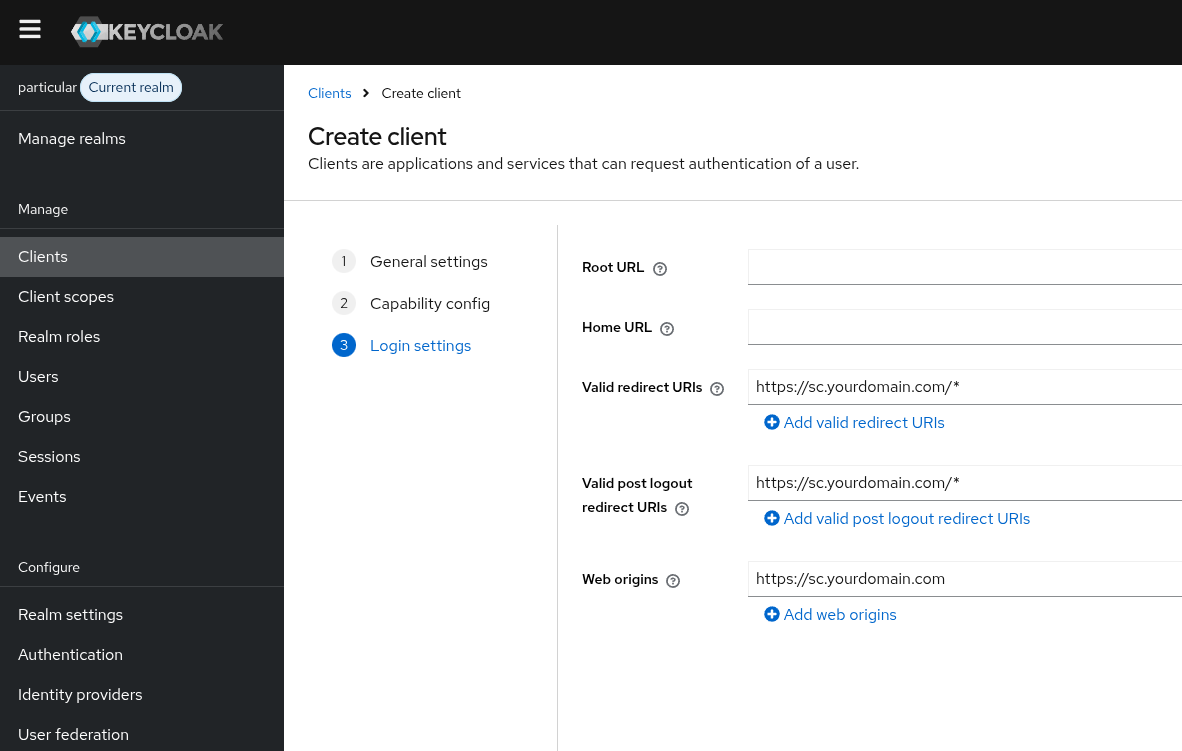
Step 3, Login settings, tells Keycloak which URLs the browser is allowed to land on. ServicePulse, hosted inside ServiceControl, lives at https://sc.<yourdomain>. Fill in:
- Valid redirect URIs:
https://sc.<yourdomain>/*. The trailing/*matches any path under that origin, which keeps the configuration tolerant of internal route changes in ServicePulse. - Valid post logout redirect URIs:
https://sc.<yourdomain>/*. Without this, Keycloak has nowhere to send the user after they sign out and the logout flow stalls. - Web origins:
https://sc.<yourdomain>(no wildcard). Keycloak echoes this back in CORS headers on token-endpoint responses so the SPA’sfetchcalls succeed. - Root URL and Home URL: leave blank. Useful for server-side rendered apps; the SPA doesn’t need them.
The wizard finishes and lands you on the client’s detail page. Two more settings live there. The first is on the Settings tab, in the Capability config section a little further down the page:
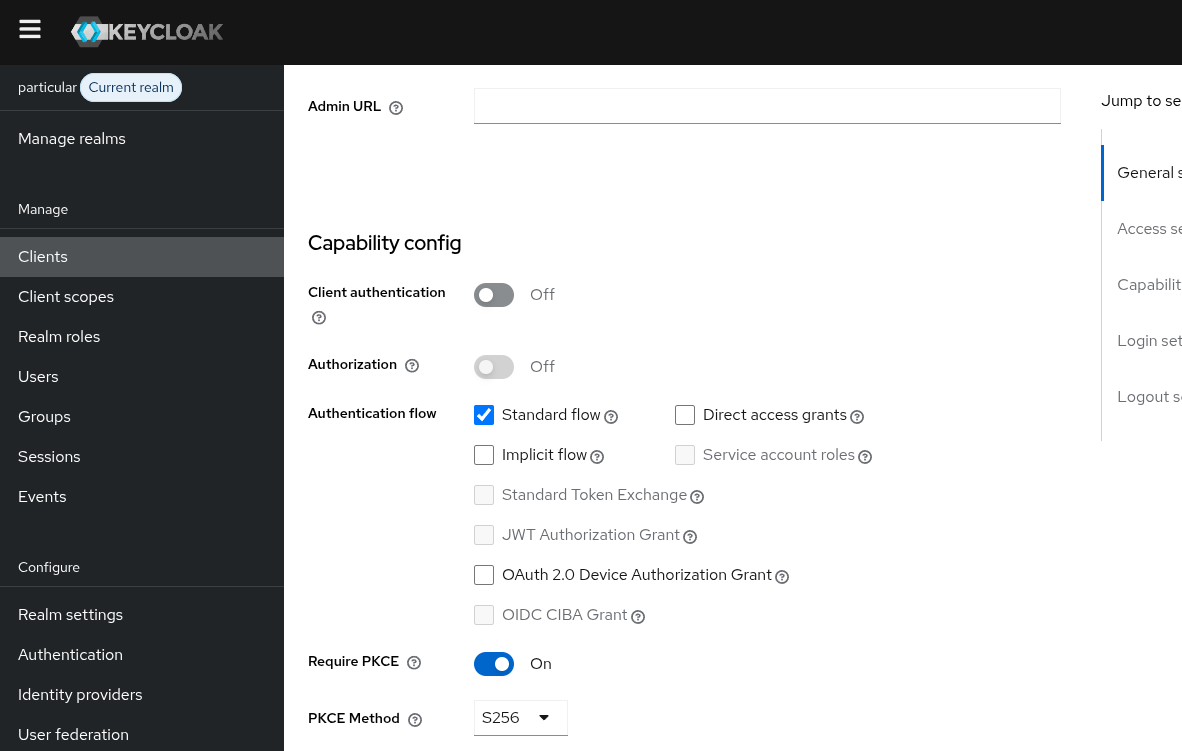
Switch Require PKCE on and set PKCE Method to S256. That makes PKCE mandatory for this client: every authorization request has to include a code challenge, every token exchange has to include the matching code verifier, and Keycloak refuses tokens for any flow that skips them.
The second is on the Client scopes tab, and it’s the second place the configuration quietly fails for first-timers:
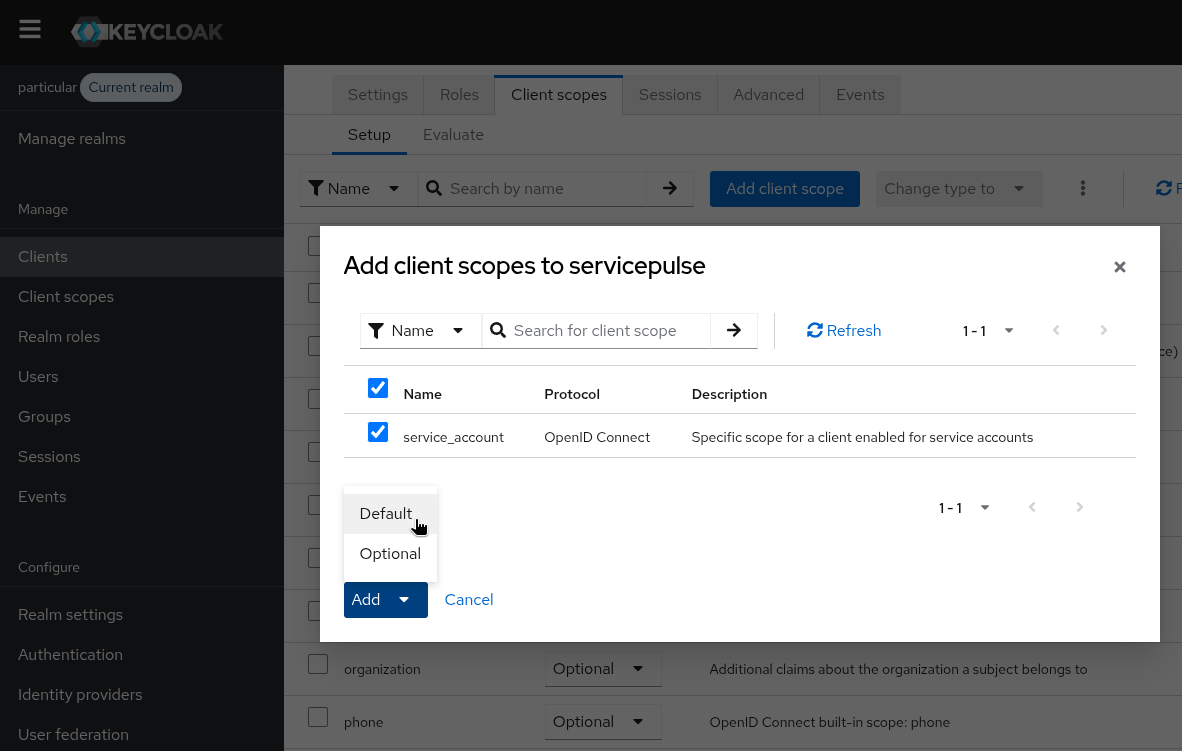
Attach the servicecontrol-api scope as Default, not Optional. Default and Optional look identical until you inspect a token, Optional only includes the scope when the client explicitly asks for it, and although ServicePulse does ask, hard-wiring this on the client side removes one moving part. Either works; Default is less surprising.
A test user
The last piece is something to log in as. In Users, add a user with a username and email. Switch to the Credentials tab and set a password, and turn Temporary off:
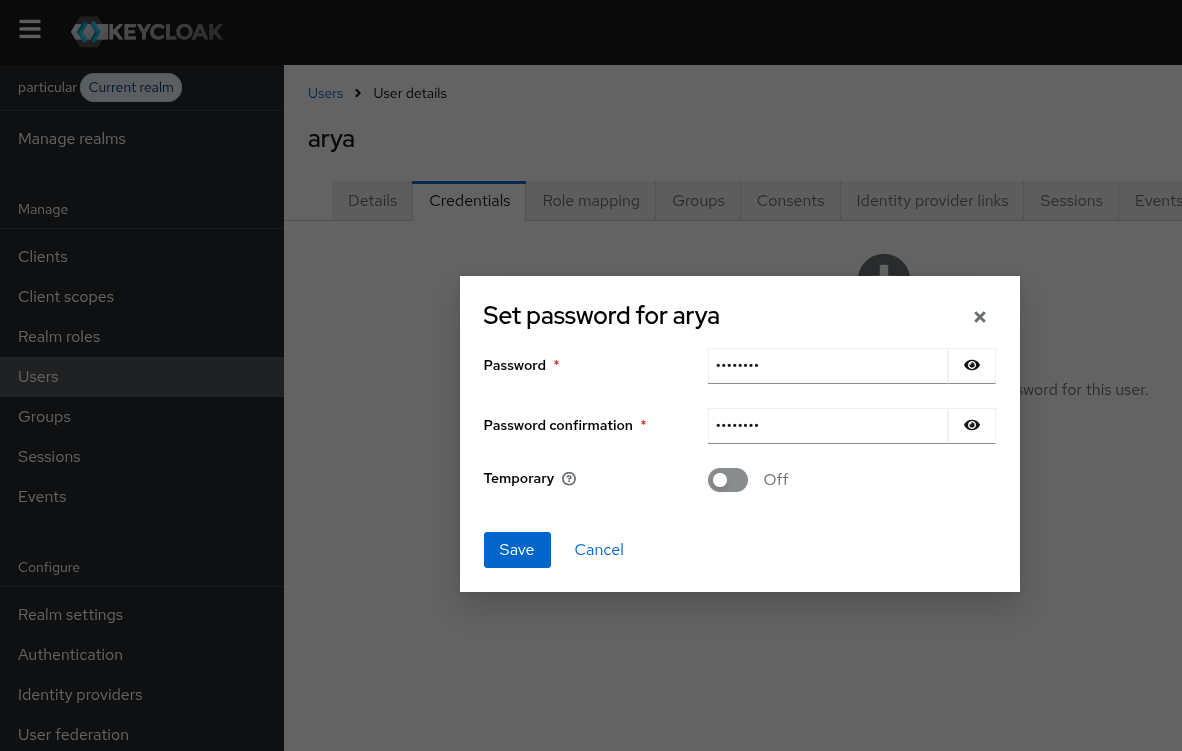
Temporary passwords force a reset on first login. The reset flow is a separate redirect that ServicePulse isn’t designed to handle in the middle of its login round trip, so the browser tends to land on a Keycloak page asking for a new password while the SPA waits for a callback that never comes. Non-temporary keeps the login path linear.
Verify the token
Before moving on to ServiceControl, it’s worth confirming that the Keycloak side actually issues the token shape we want. Keycloak has a built-in tool for exactly this and you don’t need a browser or curl to use it.
In the admin console, navigate to Clients → servicepulse → Client scopes tab → Evaluate sub-tab. Pick the test user from the Users dropdown. The Scope parameter defaults to just openid, which is fine, the servicecontrol-api scope is attached to the client as Default, so it applies on every request regardless of what the parameter explicitly asks for.
Below the form, select Generated access token and the JSON which Keycloak would issue appears on the page. The bits that matter:
{
  "iss":   "https://kc.<yourdomain>/realms/particular",
  "aud":   ["servicecontrol-api", "account"],
  "azp":   "servicepulse",
  "scope": "openid profile email"
}
iss is the realm URL, which confirms KC_HOSTNAME took effect. aud is the value the audience mapper writes. Keycloak emits it as a JSON array because there are multiple entries, the account one is added by Keycloak’s built-in account client and is harmless. What matters is that servicecontrol-api is in the list; ServiceControl validates the configured audience against the array and accepts the token as long as its value is present. azp (“authorized party”) is the client that requested the token, always servicepulse.
The one thing that looks off but isn’t: the scope claim doesn’t list servicecontrol-api, even though that scope is doing the audience-mapping work. That’s a Keycloak quirk; the scope name only ends up in the scope claim when Include in Token Scope is enabled on the client scope, and ServiceControl doesn’t check the scope claim anyway. The audience claim is the one that matters.
If servicecontrol-api is missing from aud, or aud reads only servicepulse, the audience mapper isn’t reaching the access token. Recheck the Add to access token toggle on the mapper and confirm the servicecontrol-api scope is attached to the client as Default.
When the token looks right, the Keycloak side is finished. Part 3 brings up ServiceControl, hands it those same values through environment variables, and finishes the loop.